Free Chrome extension
The AAC for Chromebooks
A full communication system on the device a student already carries. Free, full screen, and ready in one click.

 laptop
 school
 talk
 free
 wifi
 friends
Six tiles from a MoCo board, the same board that opens on a Chromebook.
The Chromebook is the device students already have. It should be able to be their voice.
Chromebooks are the most common device in American classrooms. They are also the device that robust AAC has mostly skipped. Communication systems are usually built for tablets first, so a student who needs AAC often needs a second device, a purchase order to pay for it, and someone to carry it from room to room. Meanwhile the Chromebook is already on the desk.
Model Communicator, MoCo for short, treats the Chromebook as a real communication device. Our free Chrome extension opens a complete, symbol-based AAC board in its own full-screen window. The student taps tiles, the words collect in a message bar, and the Chromebook speaks them aloud.
The short version: add one free extension, click its button, and a Chromebook becomes an AAC device. There is no account to create, nothing to buy, and it keeps working without Wi-Fi after the first visit.
Made for how a Chromebook is used
Not a tablet app squeezed into a browser tab.
Full screen in one click
The extension puts one button in the Chrome toolbar. Clicking it opens the board in its own window, with no tabs, address bar or toolbar to tap by accident.
Works without Wi-Fi
After the first visit the board and its symbols are saved on the Chromebook. It opens and speaks on the bus, on the playground and during an outage.

A child voice that runs on the device
MoCo Child is a natural child voice made for Model Communicator. It is a one-time download of about 29 MB and then needs no internet. The voices built into ChromeOS work too.
A complete vocabulary
The MoCo-60 board has six rows of ten tiles and more than 600 pages. Core words stay in the same place on every page, so motor memory builds instead of resetting.

Find Word
Type any word and the app shows where it lives, then highlights the path one tap at a time. Teachers and aides can model a new word without hunting for it.

Share to Google Drive
A message can be saved into a Google Doc from the Share button, so a student can write a journal entry or answer an assignment with their own words.
Nothing recorded
Students do not sign in to communicate, and we never record the messages anyone speaks. Settings and the offline copy stay in the browser on that Chromebook.

Settings stay put
Settings open only after a press and hold, and an adult can add a passcode. A curious student cannot change the voice or the board by accident.
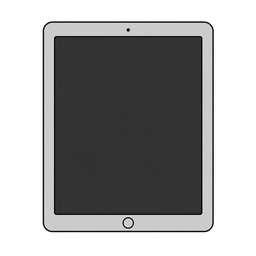
The same board on an iPad
Model Communicator is also a free iPad app and runs in any modern browser. A student can use a Chromebook at school and a different device at home without learning a new layout.
Set it up in about two minutes
On a personal or unmanaged Chromebook. School-managed devices are covered in the next section.
Add the extension
Open Model Communicator in the Chrome Web Store and click Add to Chrome. It is free and asks for no access to web pages or browsing data.
Pin the button
Click the puzzle-piece icon in the Chrome toolbar and pin Model Communicator, so its button is always visible.
Click it
The board opens full screen. Tap I, want, more, then Speak. Press Esc or the full-screen key to leave.
Get ready for offline
While you are online, visit the pages you use most and download the MoCo Child voice in Settings. Then turn off Wi-Fi and try it.
The step-by-step version, with what to expect on each screen, is in Install and offline use. New to AAC? Getting started takes a family or a classroom from nothing to a first spoken message in about ten minutes.
For school IT: deploy it from Google Admin
On managed Chromebooks, students usually cannot add extensions themselves. You can do it for them in a few minutes.
| Option | What it does | Best for |
|---|---|---|
| Force install and pin | Installs the extension for an organizational unit or a group and keeps its button in the toolbar. | Students who use their own Chromebook for classwork and for communication. |
| Allow install | Leaves the extension available in the Chrome Web Store so staff can add it for the students who need it. | Districts that block extensions by default and prefer not to force-install. |
| Kiosk app | Starts the Chromebook straight into the board, with no sign-in screen. | A Chromebook that is used only as a communication device. |
What your review will find
- One permission. The extension requests
storageonly, to remember its own window. It has no host permissions and no access to pages, tabs or history. - Manifest V3, published in the Chrome Web Store. Extension ID
aclidjfnklhmcbmakcjaahoegehdeihf. - No license to manage. It is free, with no seat count and no ads.
- No student accounts. Nobody signs in to communicate. An optional sign-in adds cloud sync and Studio for staff who want them.
- A short allowlist. The hosts to allow in your content filter are listed under Network requirements.
The Google Workspace deployment guide has the exact steps for each option, including how to check that it worked. Privacy details for a vendor review are on the Compliance page.
One request: exempt AAC users from testing and lockdown tools that close other windows. A student's voice should not disappear during an assessment.
What to know before you rely on it
We would rather tell you now than have you find out in a classroom.
- A touch screen is the better fit. The board works with a trackpad or a mouse, but tapping a tile directly is faster and easier for most communicators. If you are choosing a Chromebook for an AAC user, choose a touch-screen model.
- The offline copy lives in the browser. Clearing browsing data, using an incognito window, or signing in as a guest removes it. Managed guest sessions are a poor fit for the same reason.
- Open it once while online. The first visit is what saves the board and its symbols. Do this before the Chromebook goes somewhere without Wi-Fi.
- One board size today. The web app shows the MoCo-60 board. Smaller board sizes are in development.
- Some extras need a connection. Sign-in, Studio and the Activity Map need the internet. Communicating does not.
Questions we hear
Where to go next

The Chromebook is already on the desk.
Make it a voice today. Free, no account, works offline.