
Web app basics
Model Communicator runs in any modern browser, with nothing to install and no sign-in.

Open the app
The web app is free and needs no account. It works on Chromebooks, Windows and Mac computers, Android tablets and iPads.
- Go to modelcommunicator.com and click the green Open App button at the top right. The app opens in a new tab. You can also go straight to modelcommunicator.com/app and bookmark it.
- The first time, a short note explains that Model Communicator is in beta. Click Get started.
- The MoCo-60 Home board appears. Start tapping.
Good to know: While the board is open, pinch-to-zoom is turned off so a stray two-finger touch cannot blow up the screen. For a true full-screen, kiosk-style setup on a Chromebook, see Install and offline use.
A tour of the screen
| Part | What is there |
|---|---|
| Message bar (top) | From left to right: Speak, the message with word suggestions at its right end, the . end-sentence button, then Delete word, Clear, Home, Find Word (magnifying glass) and Share. |
| Header | ← Back (once you have left Home), the name of the current page, a house button to go Home, and the gear for Settings. |
| Board | Six rows of ten tiles, plus a narrow extra column on the right for similar words and word forms. |
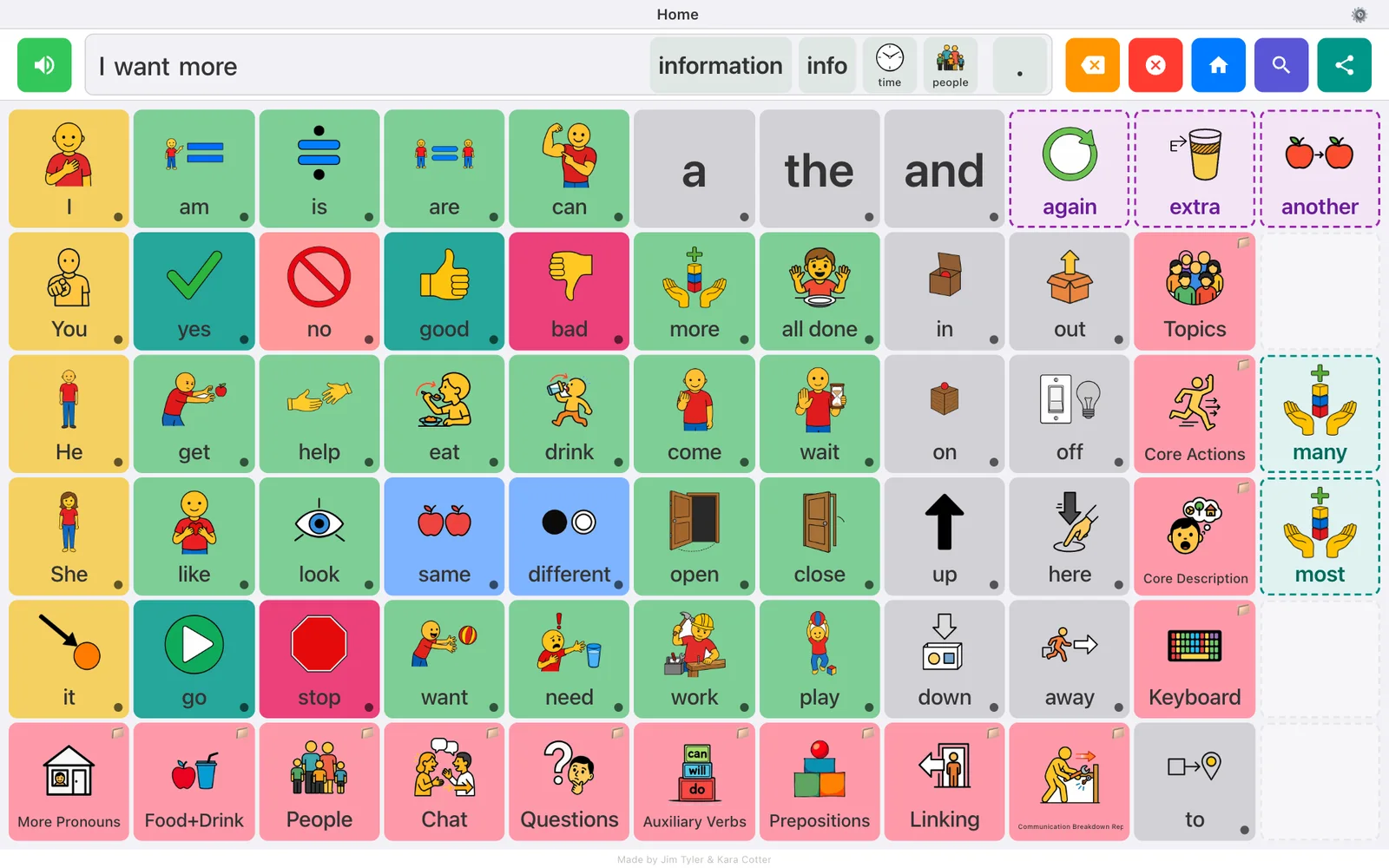
Tiles never move around. Every word keeps its place, which is what lets a communicator build motor memory.
Build and speak a message
- Tap tiles, for example I, want, more. Each word is spoken and added to the message bar.
- Tap Speak at the left of the message bar to say the whole message. Tapping the message text itself does the same thing.
- Tap Delete word to remove the last word, or Clear to empty the bar.

Tip: Cleared by accident? For eight seconds after a clear, the Clear button turns into Undo. Tap it and the message comes back.
End the sentence
The . button at the right end of the message adds a period and speaks the sentence in one tap. A small menu then offers !, ? and , in case you want to swap the period for something else.
Share a message
The Share button opens a small menu: Google Drive saves the message into a Google Doc (useful for journaling or schoolwork), Copy to Clipboard lets you paste it into an email or chat, and on phones and tablets More... opens the device's own share sheet.
Folders, Home and Back
Some tiles open another page instead of speaking. On the Home board these sit along the bottom row (More Pronouns, Food+Drink, People, Chat, Questions and more) and down the right side: Topics, Core Actions, Core Description and Keyboard.
Most topics come as a small family of pages: the topic's words, an Actions page (verbs that go with the topic) and a Describe page (describing words). After you pick a word on an Actions or Describe page, the app returns to the topic page by itself so the next word is close at hand.
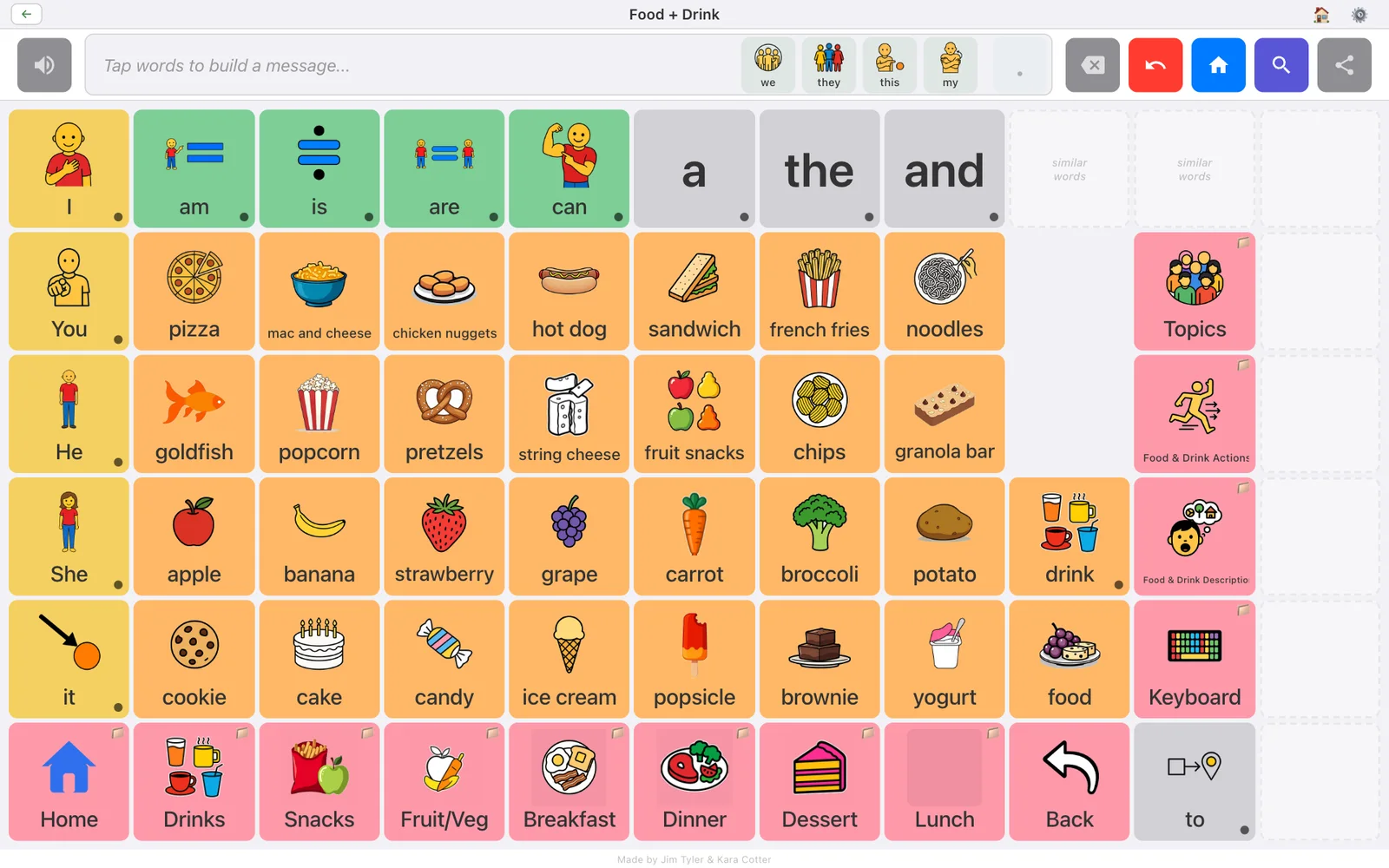
Use ← Back to return to the previous page, or the house button to go Home. The Home button in the message bar also clears the message, ready for a fresh start.
Good to know: The MoCo-60 board has more than 600 pages. Nobody memorizes them all, which is what Find Word is for.
Similar words and word forms
After a word is chosen, the narrow column on the right fills in:
- Top: a similar word (a synonym), such as big → large.
- Below: other forms of the word, such as go → goes, going, went.
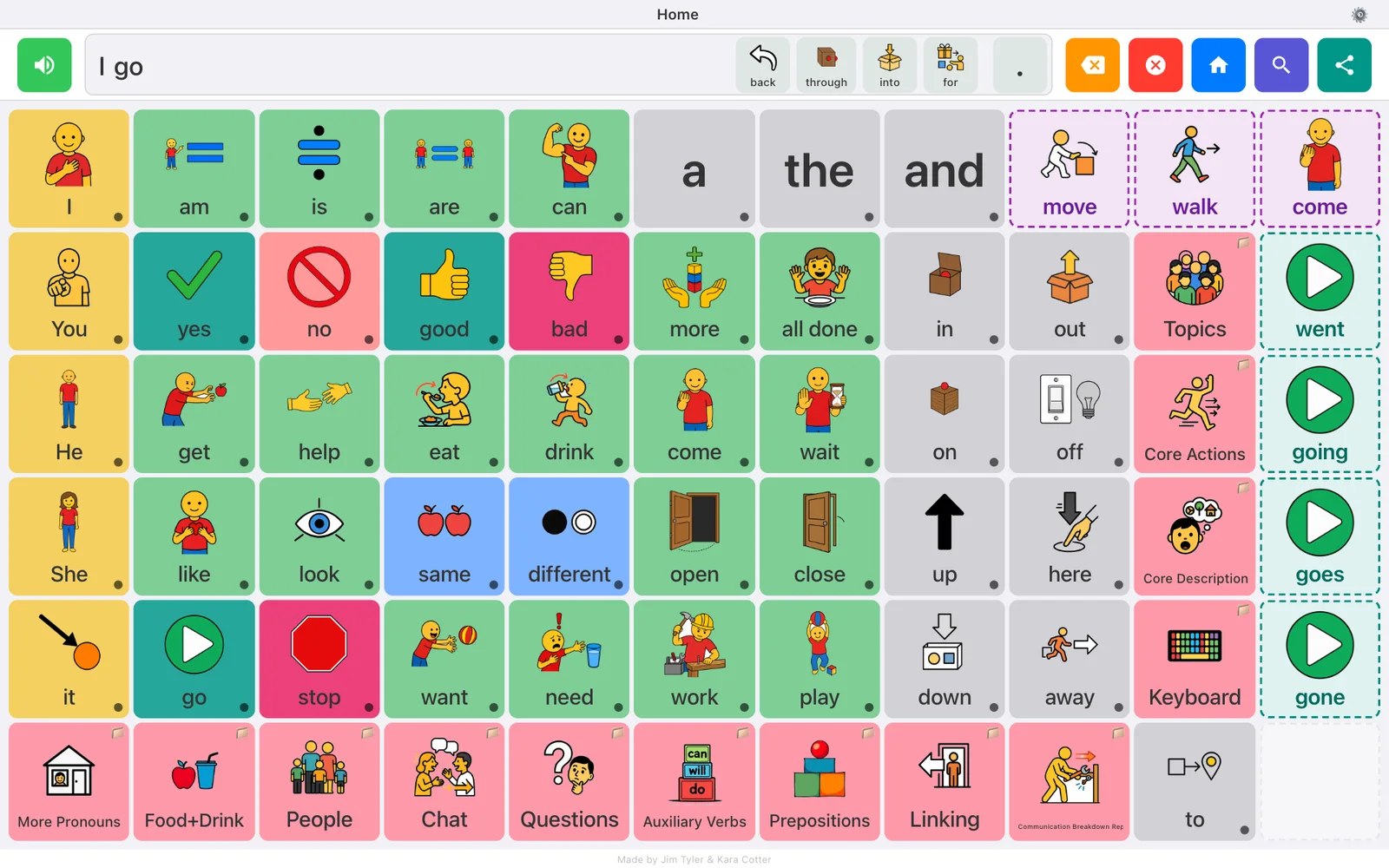
Tapping one replaces the last word in the message and speaks it. So to say going, tap go and then tap going in the side column.
Word suggestions
Up to four likely next words appear at the right end of the message bar, each with its symbol. Tap one to add it. Names are capitalized automatically.
The keyboards
Tap Keyboard on the right side of the Home board.
- Keyboard is a QWERTY layout. As you type, matching words appear in the result tiles on the keyboard page. Tap one to finish the word.
- ABC Keyboard is the same thing in alphabetical order.
- Phonetic Keyboard has keys for sounds such as sh, ch and ee. Each key plays a recording of the pure sound rather than a letter name, for phonics and early literacy work.
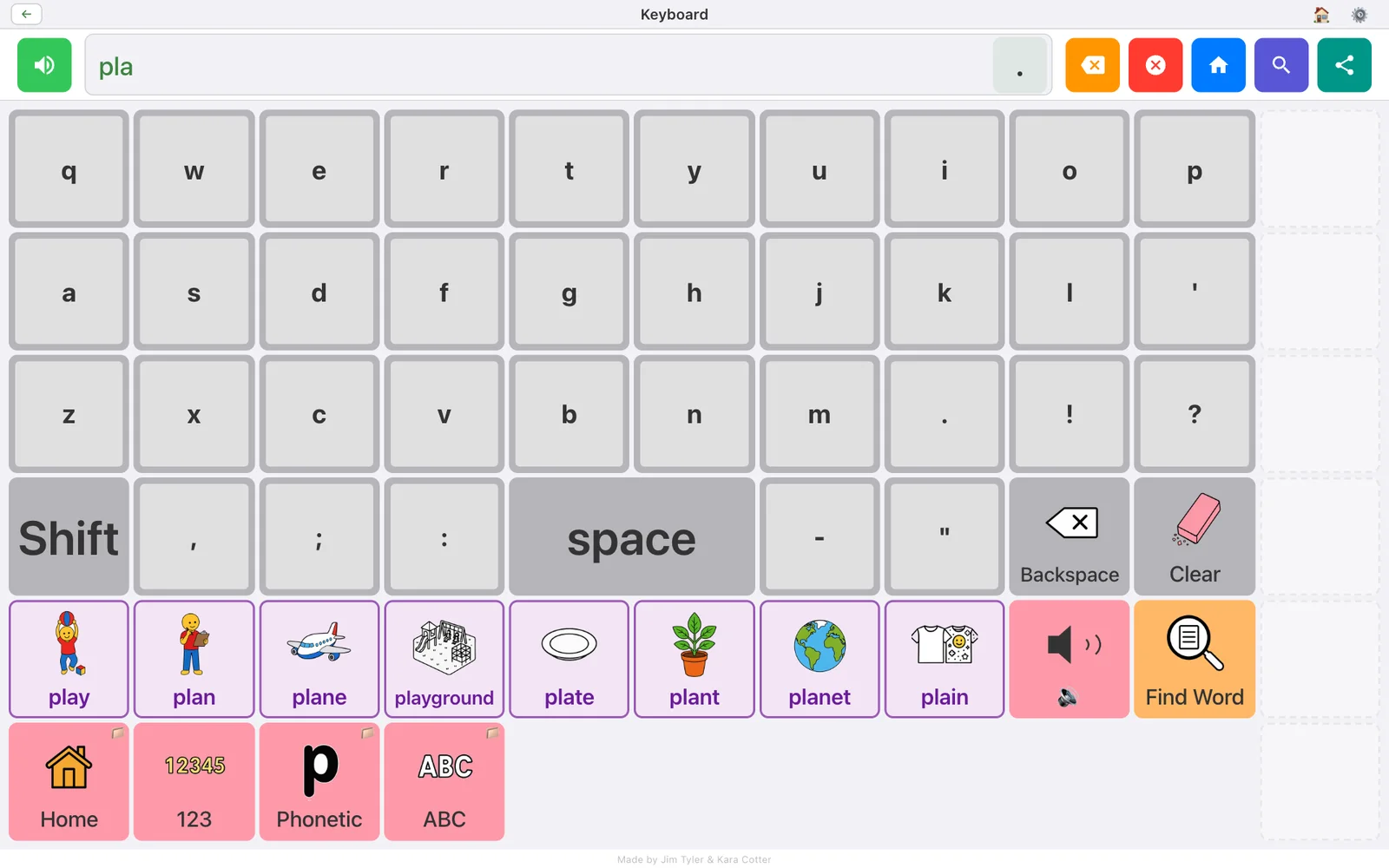
The shift key cycles through three states: off, one capital letter, and caps lock.
Find Word
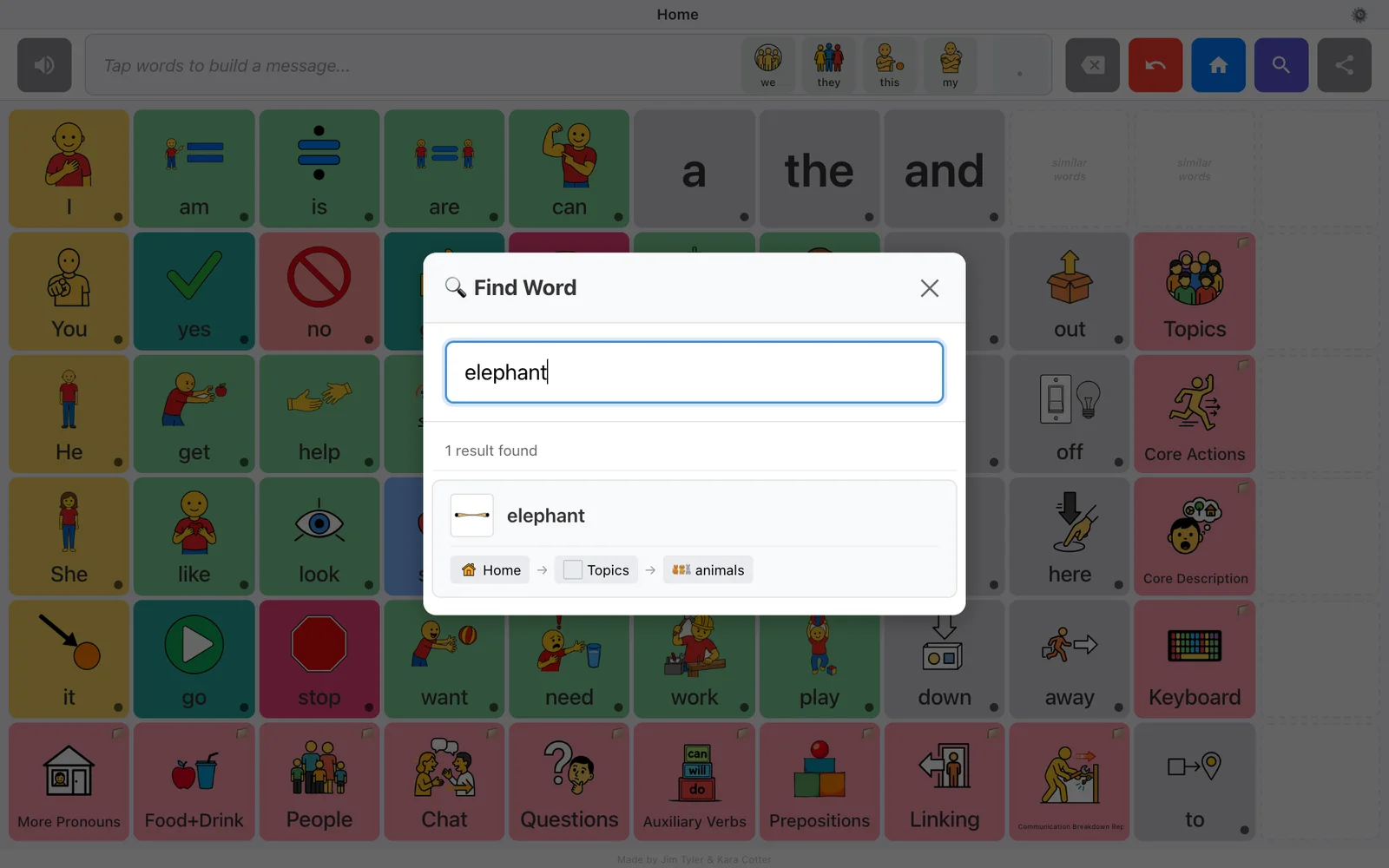
- Tap the magnifying glass in the message bar.
- Type the word. Results appear as you type, including close matches if the spelling is off. Each result shows its path, for example Home → Topics → Animals.
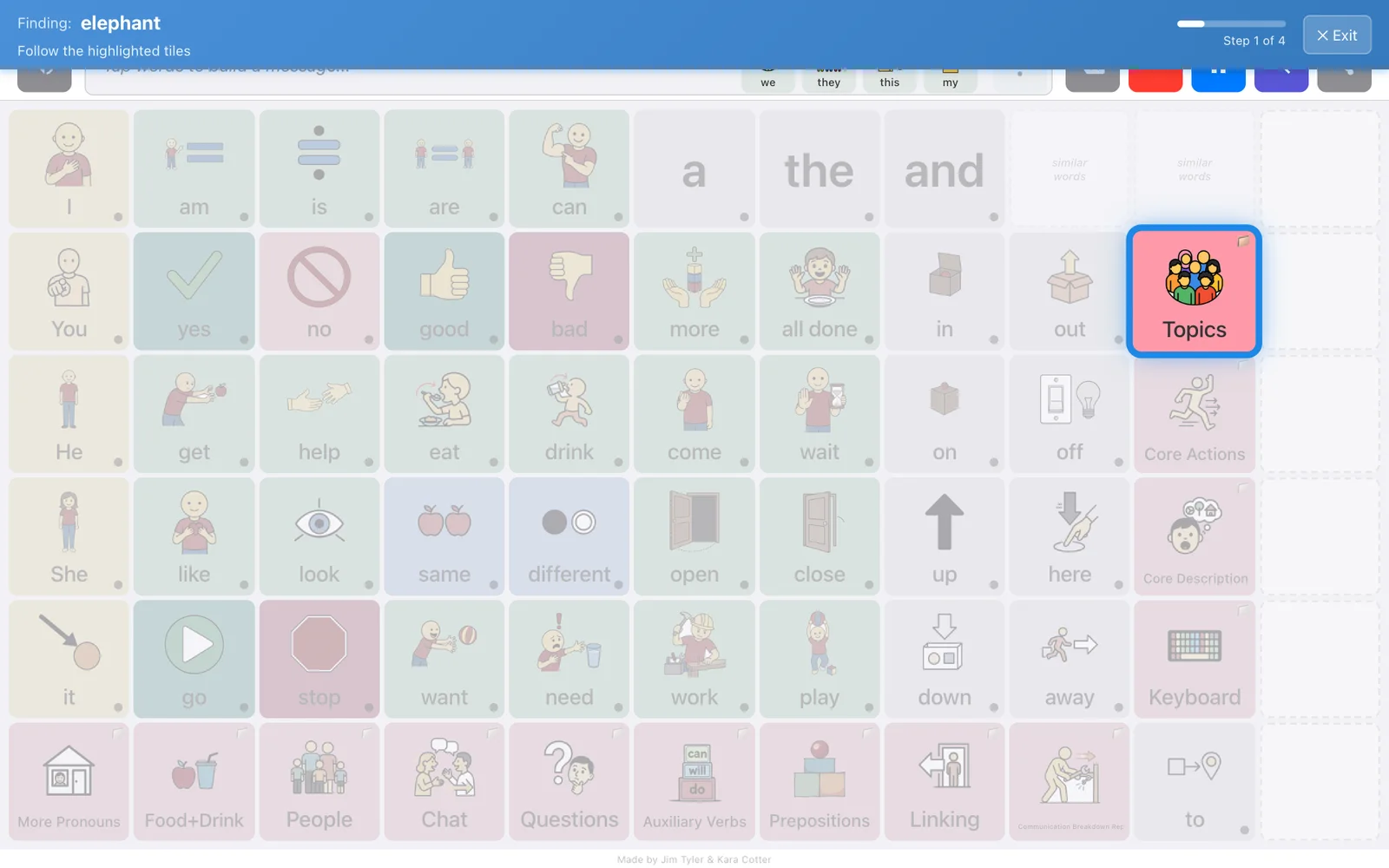
- Tap a result (or press Enter for the first one). The app goes Home and shows Finding: your word with a step counter.
- Follow the highlighted tiles, one tap per step. The guide tells you which tile to tap next, and then to tap the word itself to finish.
- Tap ✕ Exit to stop the guide early.
For SLPs: Find Word is the fastest way to prepare for a session. Look up the five or six words you plan to model, follow each path once, and you will be able to model them fluently in front of the student.