
iPad basics
A tour of the screen and everything you need to build and speak a message.

Install the app
Model Communicator for iPad is free. There is no account, no sign-in and no subscription.
- On the iPad, open the Model Communicator page on the App Store and tap Get.
- Open the app. The Home board appears right away and it is ready to talk.
- That is the whole setup. Everything the app needs (boards, symbols, voices, word suggestions) is already inside it, so it works with no internet, including in airplane mode.
Good to know: The app runs on iPad only, in any orientation. It always uses the full screen, so Split View and Slide Over are turned off on purpose: nothing can slide in over the communicator's words.
A tour of the screen
From top to bottom, the screen has three parts.
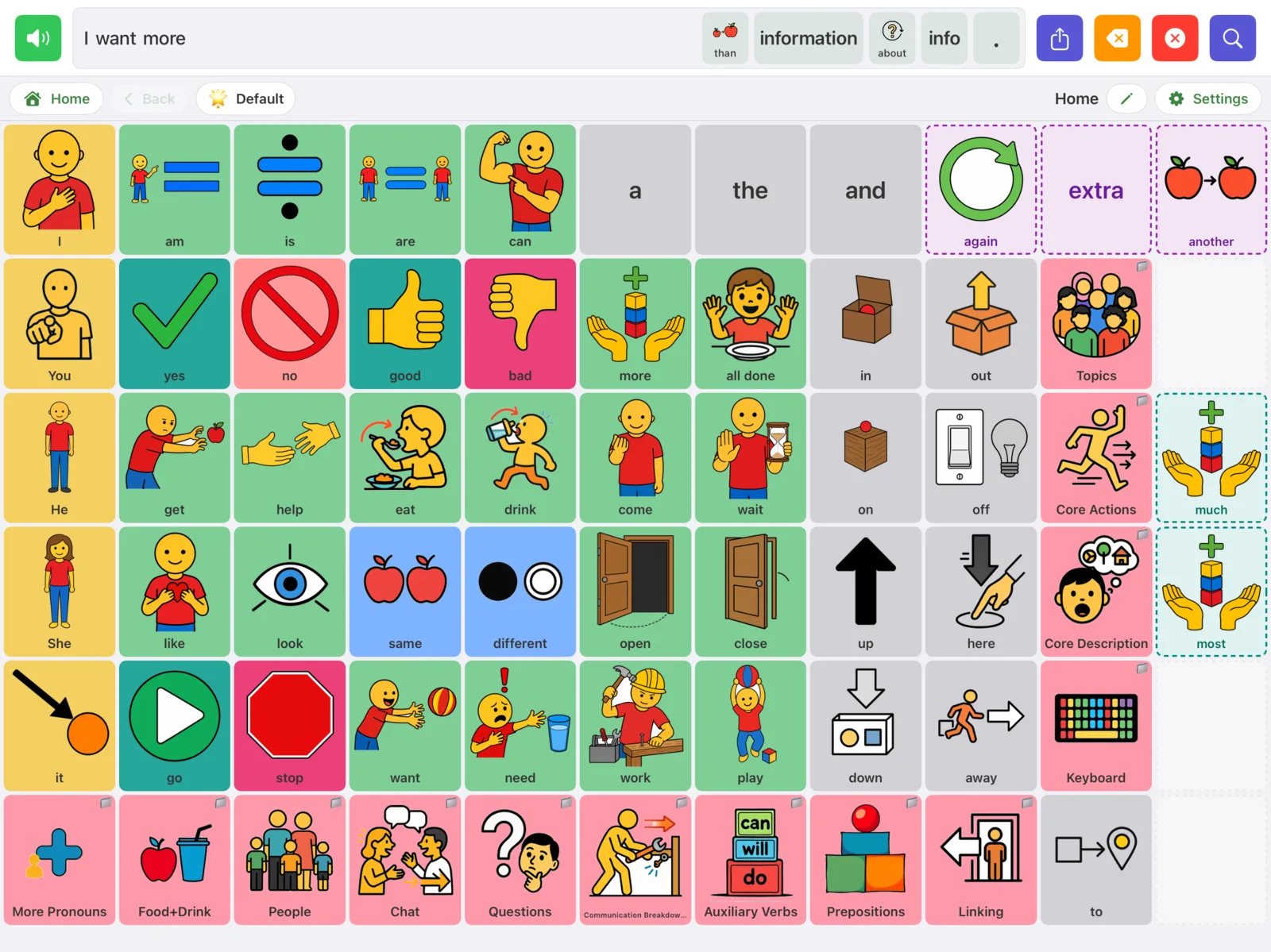
| Part | What it is for |
|---|---|
| Message bar (top strip) | Shows the message as it is built. Holds the Speak, Share, Delete word, Clear and Find word buttons, plus word suggestions. |
| Header row | Home and Back buttons, the profile chip, the name of the current page, the pencil (editing) and the gear (Settings). |
| Word grid | The board itself. Tap a word tile to say it and add it to the message. Tap a folder tile to open another page. |
The grid never scrolls and the message bar never changes height, so every word stays in the same spot every time. That consistency is what lets a communicator build motor memory, the same way you know where the keys are on a keyboard without looking.
Build and speak a message
- Tap word tiles, for example I then want then more. Each word is spoken as you tap it and appears in the message bar.
- Tap the green Speak button (the speaker icon at the left end of the message bar) to say the whole message.
- Made a mistake? Tap the orange Delete word button to remove the last word, or the red Clear button to empty the bar.

The period button
At the right end of the message bar there is a . button. Tap it to end the sentence: the app adds the period and speaks the sentence in one step. A small menu then lets you swap the period for !, ? or ,. Choosing ! or ? says the sentence again with that expression.
Fix one word in the middle
Every word in the message bar can be tapped on its own. Tap a word and choose:
- Speak to hear just that word.
- Replace, tap the new word, then tap any tile. The new word takes the old word's place.
- Delete to remove just that word.
This is on by default. You can turn it off with Tap words to edit in Settings.
Share or copy the message
Tap the purple Share button to send the message through Messages, Mail, AirDrop and so on. The share includes the text and an audio clip of the message being spoken. Press and hold the Share button to copy the text instead. A checkmark confirms the copy.
Folders, Home and Back
Tiles with a small folder badge in the corner open another page instead of speaking. On the Home board, the bottom row and the right-hand column are folders:
- Bottom row: More Pronouns, Food+Drink, People, Chat, Questions, Communication Breakdown Repair, Auxiliary Verbs, Prepositions and Linking.
- Right side: Topics (more than 40 topic folders, from Animals and Feelings to Math and Science), Core Actions, Core Description and Keyboard.
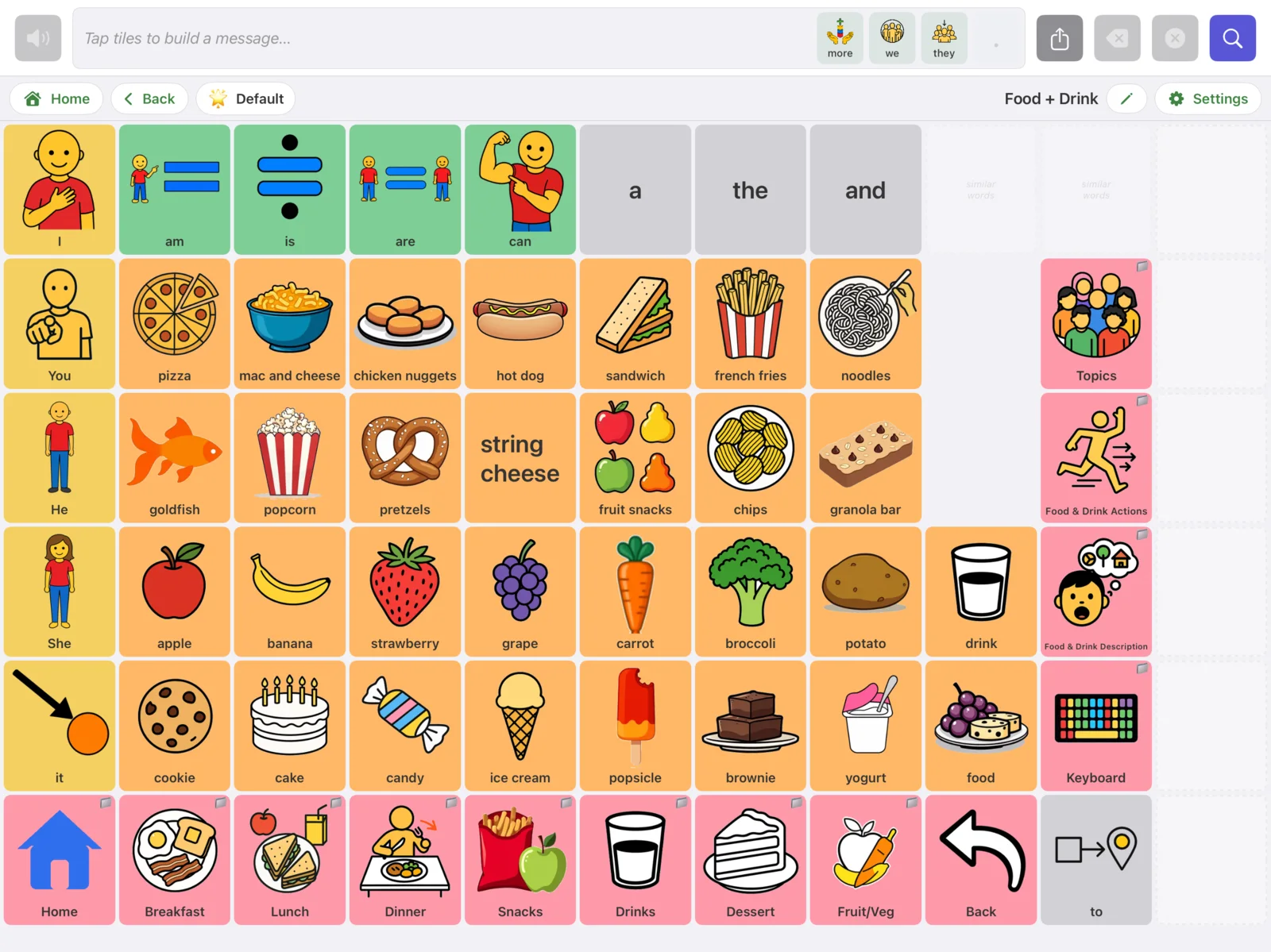
Home in the header always returns to the Home board. Back goes to the page you were on before. The name of the page you are on shows in the middle of the header.
Good to know: A folder tile that points to the page you are already on looks faded and does nothing. It stays in its usual place so the layout never shifts.
Tip: In Settings you can turn on Return home after each word. After the communicator picks a word inside a folder, the app jumps back to Home by itself. Many beginning communicators find this easier.
What the tile colors mean
Tiles are color coded by the kind of word, using a version of the Fitzgerald Key that many SLPs already use:
| Color | Kind of word | Examples |
|---|---|---|
| Yellow | People | I, you, he, she |
| Green | Actions | go, want, eat, help |
| Orange | Nouns | things, places, food |
| Blue | Describing | good, more, different |
| Purple | Questions | what, where, who |
| Pink | Social, and the navigation row | folders along the bottom |
| Gray | Little words | a, the, and |
Yes is always light green and no is always light red so they are quick to find.
Word suggestions, endings and similar words
Suggestions in the message bar
Small suggestion tiles sit at the right of the message bar. When the bar is empty they offer eight common sentence starters. While a message is being built they offer four likely next words. Tap one to add it. Suggestions work offline and slowly learn the words each profile uses most. Words that are already on the page in front of you are left out, so suggestions never duplicate the board.
The extra column on the right
On the MoCo-60, MoCo-48 and MoCo-42 boards there is a narrow extra column at the far right. It fills in after a word is chosen:
- Teal tiles are word endings. After go you will see choices such as goes, going and went. Tapping one swaps it in, so go becomes going. You can keep tapping to try a different ending.
- Purple tiles are similar words. Tapping one swaps it in for the last word.
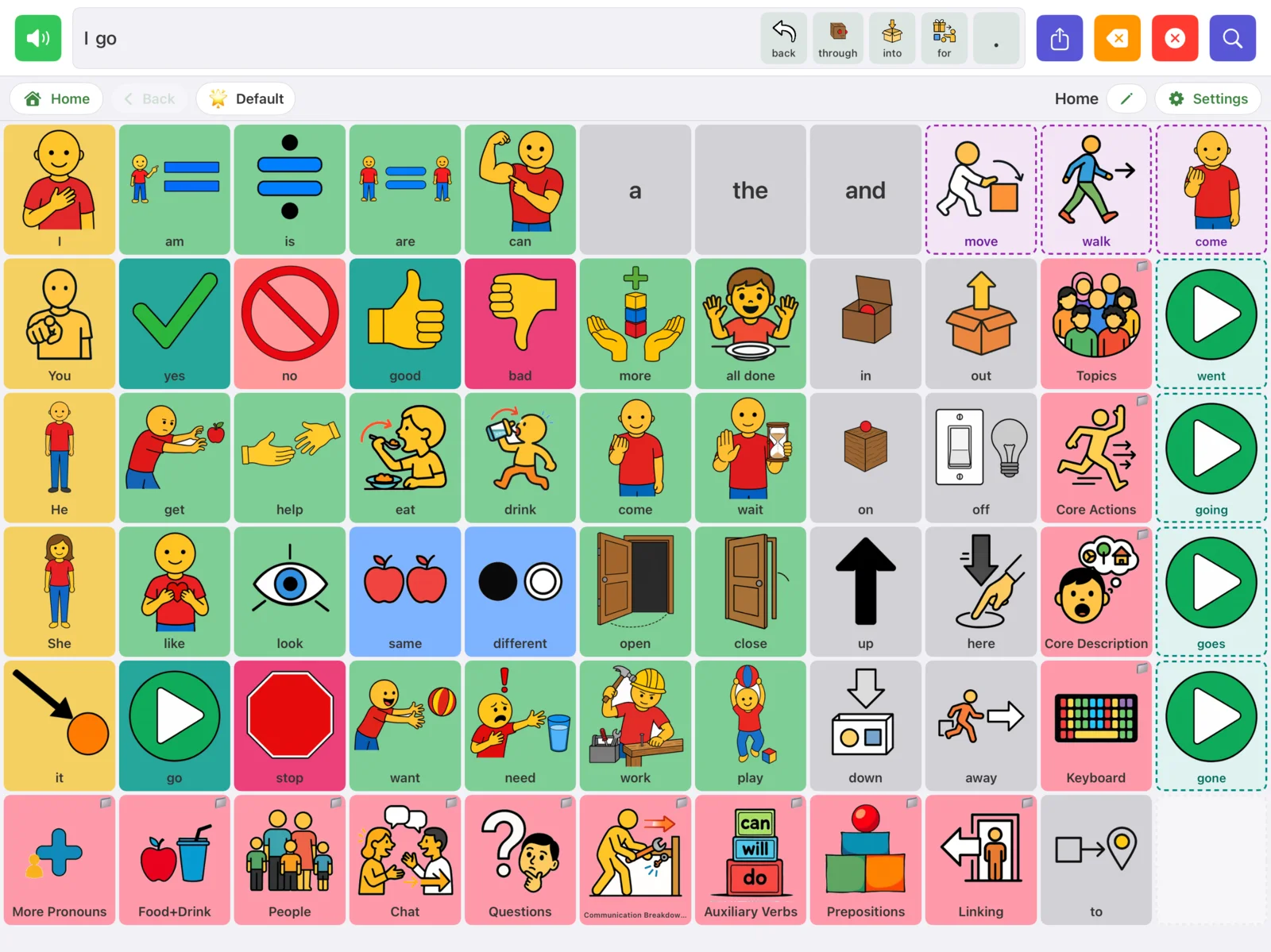
When nothing is on offer the slots show a faint hint ("word endings", "similar words") so the communicator learns where to look.
For SLPs: Because endings are generated automatically, you do not need separate tiles for plurals and verb tenses. Model the base word first, then the ending: tap go, then tap going in the side column.
The keyboards
Tap Keyboard on the right side of the Home board. (On the small MoCo-25 board, open Topics first, then Keyboard.)
- Keyboard is a standard QWERTY layout. As you type, up to seven word completions appear in the row under the space bar. Tap one to finish the word.
- ABC is the same keyboard in alphabetical order, for learners who know the alphabet song better than a computer keyboard.
- Phonetic has 40 sound keys such as sh, ch, ee and oo. Each key plays a real recording of the pure sound rather than a letter name, which makes it useful for phonics and literacy work.
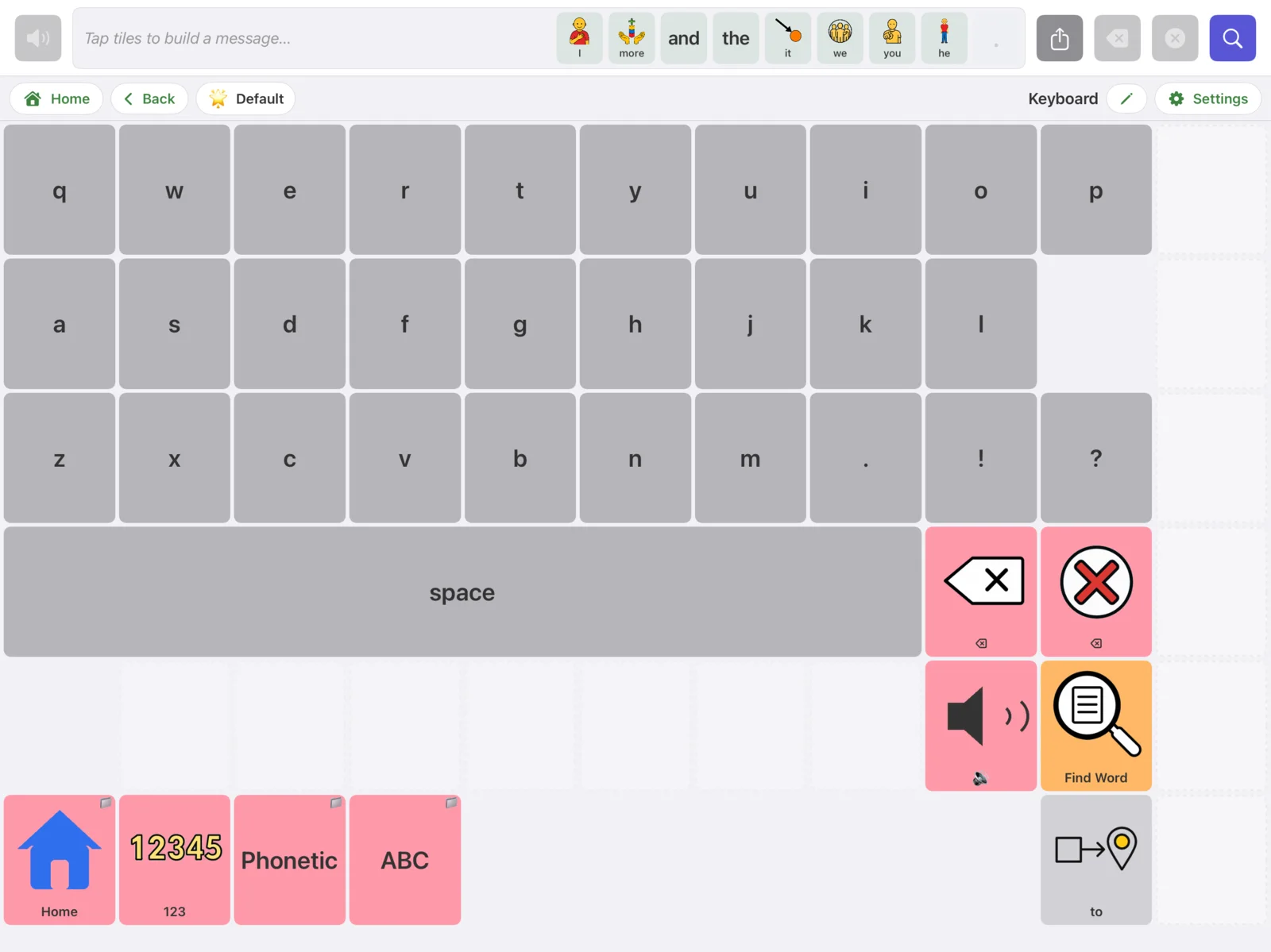
There are two backspace keys: one removes a single letter, the other removes the whole word. The speaker key says everything typed so far, and Find Word opens the word finder.
Tip: A Bluetooth or wired keyboard works from any page. Just start typing: letters go into the current word, space finishes the word, delete backspaces and return speaks the message.
Find Word: let the app show you the way
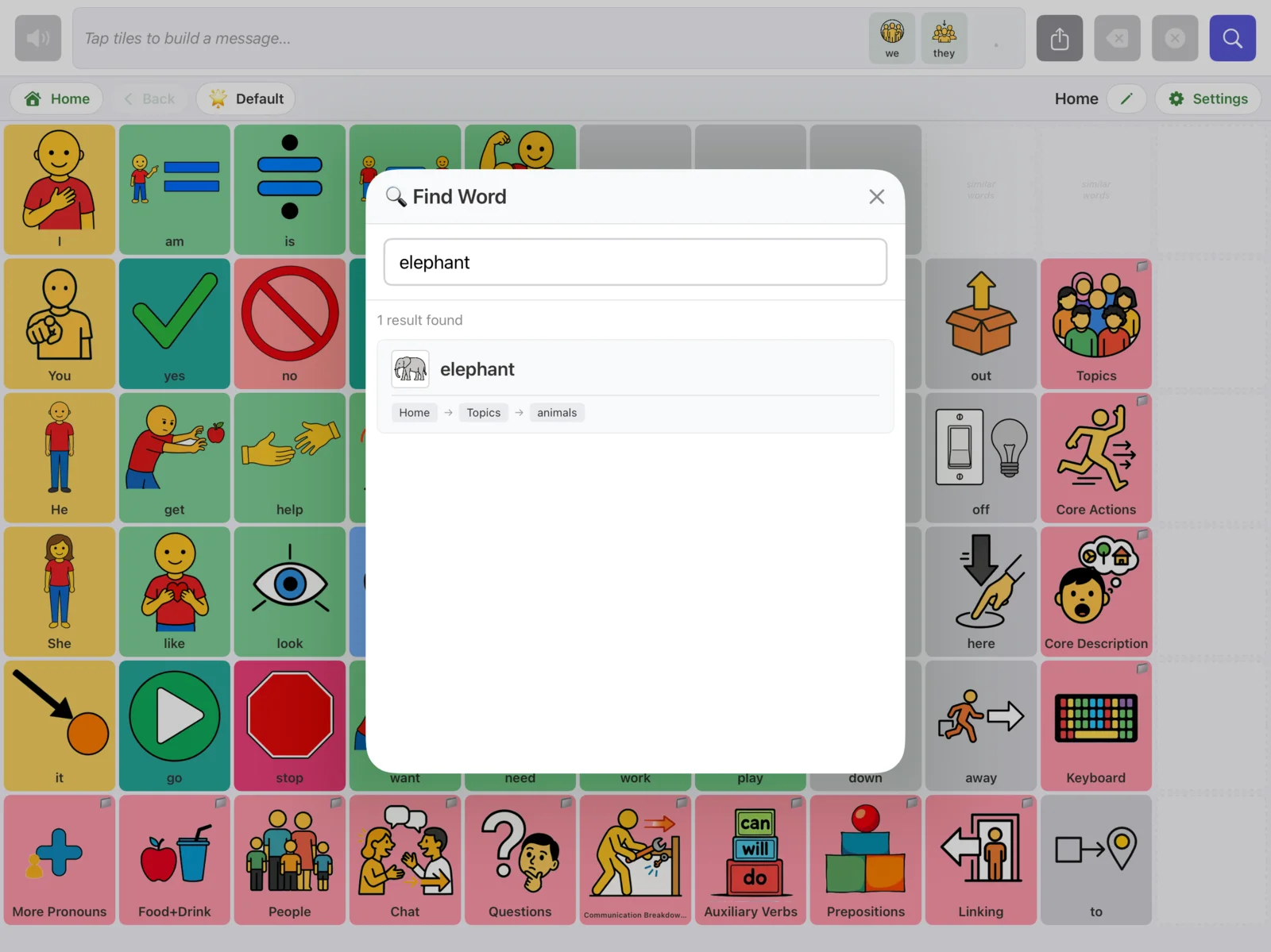
With thousands of words across hundreds of pages, nobody remembers where everything is. Find Word searches every page and then walks you to the word one tap at a time, so you learn the path and can model it.
- Tap the purple magnifying glass in the message bar (or Find Word on any keyboard page).
- Type the word. Results appear as you type, and close spellings are matched too. Each result shows the path to the word, for example Home → Topics → Food+Drink.
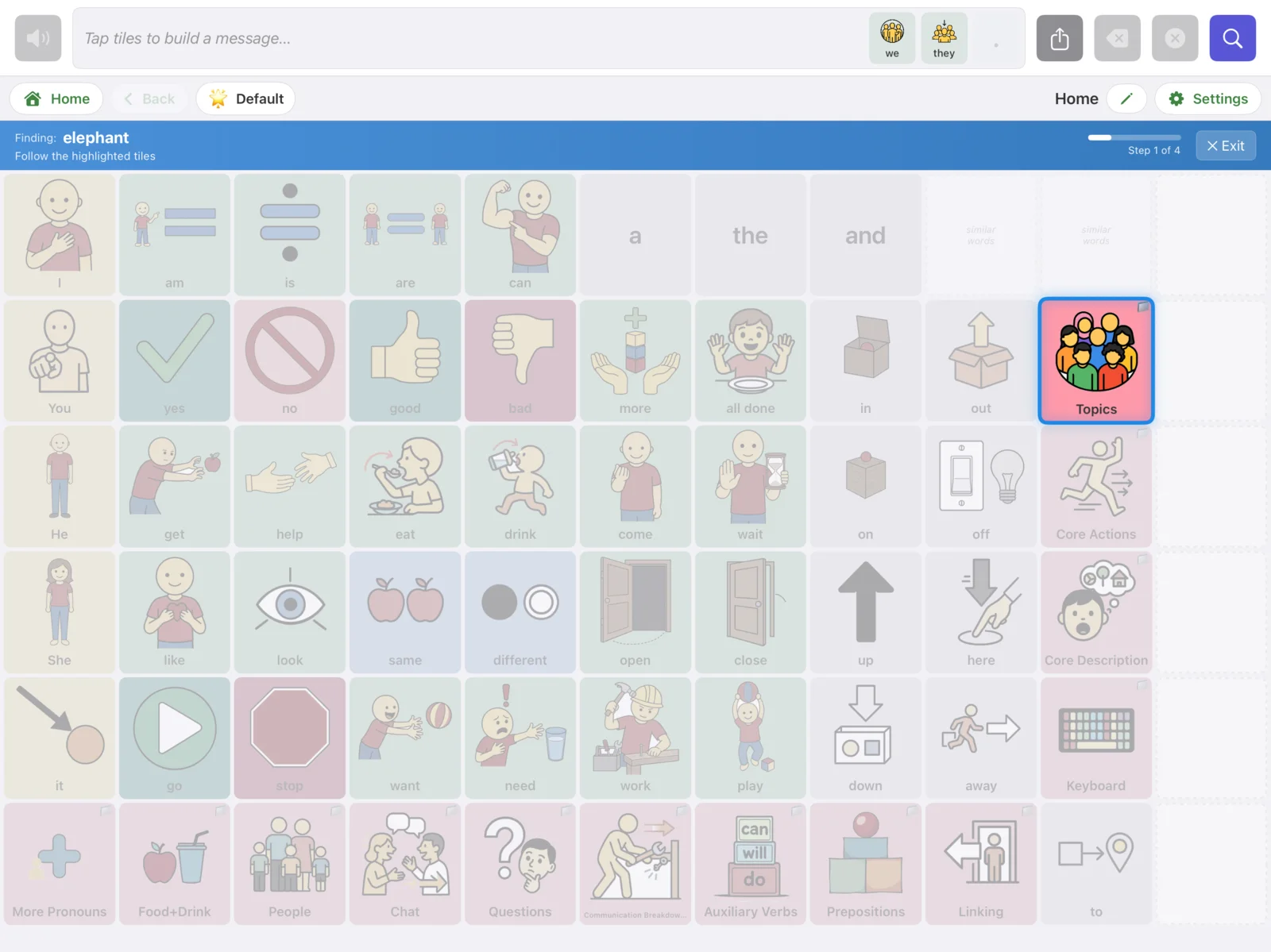
- Tap a result. The app returns to Home and a blue bar appears under the message bar: Finding: your word, with a step counter.
- Follow the highlighted tiles. The folder to open next has a blue ring and everything else fades. On the last page the word itself has a green ring.
- Tap the word. It is spoken, added to the message, and the guide ends. Tap Exit in the blue bar to stop early.
Good to know: Find Word only lists words the communicator can actually reach. Tiles you have hidden are left out of the results.