
Profiles, modeling mode and backup
Share an iPad, protect your customizations and print a paper backup board.

Profiles: one iPad, several communicators
The profile chip sits in the header row next to Back and shows an emoji and a name. Each profile keeps its own voice, speech settings, grid size, learned word suggestions and per-profile hidden words. The app starts with one profile called Default and allows up to eight.
- Tap the profile chip to open Profiles.
- Tap Add Profile. A new profile appears, named Profile 2.
- Swipe left on it and tap Rename to give it the person's name. Tap its emoji to cycle through the choices until you find one they like.
- Tap a profile row to switch to it. A checkmark shows the active profile. Tap Done.
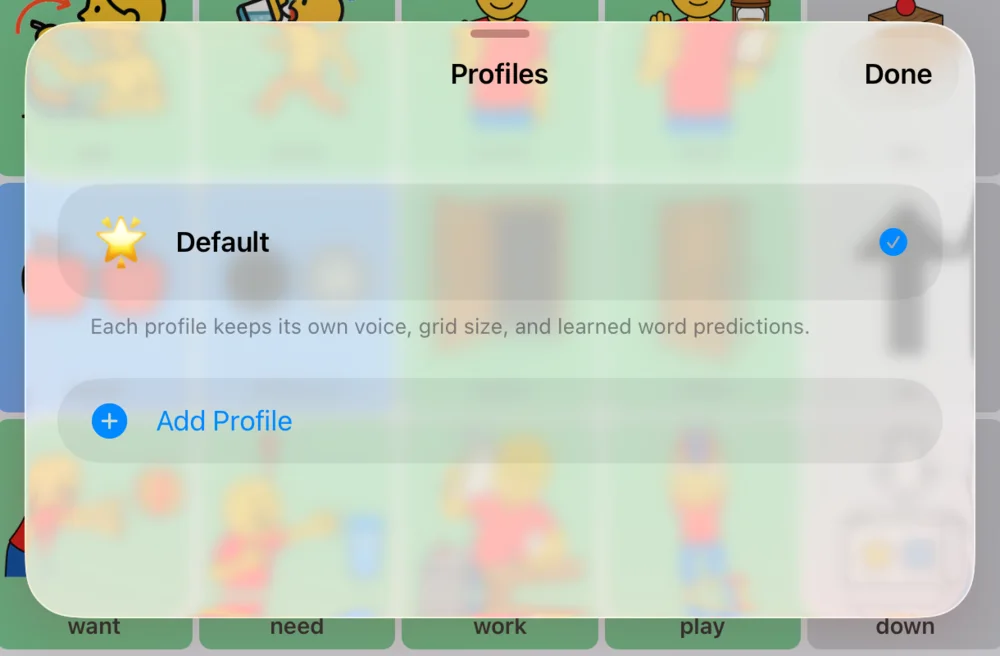
To remove a profile, swipe left on it and tap Delete. Its learned suggestions are deleted with it.
Good to know: Page edits (new words, photos, new pages) are shared by every profile on the iPad. Only hidden words can be set per profile.
Modeling mode
When a parent, teacher or therapist uses the communicator's device to model language, those taps should not teach the app what the communicator likes to say. Modeling mode takes care of that.
- Press and hold the profile chip for about a second. It turns purple and reads Modeling.
- Model as much as you like. Speech works normally.
- Press and hold the chip again to turn modeling mode off before handing the iPad back.

While modeling mode is on, the words you tap are not added to the profile's learned word suggestions, so the suggestions keep reflecting the communicator's own voice and interests.
Back up your boards
Your edits live on the iPad. There is no account and no cloud copy, so a backup file is the only protection if the iPad is lost, broken or replaced. Make one after every round of changes.
- Open Settings (press and hold the gear) and scroll to Boards. Edited or custom pages shows how many pages you have changed.
- Tap Back up boards….
- Choose where to send the file ModelCommunicator-Boards.moco: Save to Files (iCloud Drive is a good spot), Mail it to yourself, or AirDrop it to another device.
The file holds only what you made: the tiles you changed on built-in pages, the pages you created, and the photos and recorded sounds on them. It is never a copy of the whole board, so it stays small. The web app reads the same file.
Restore boards, or copy them to another iPad
- Get the backup file onto the iPad (AirDrop, email or the Files app).
- Open Settings and, under Boards, tap Restore boards….
- Choose the .moco file. The app confirms with Restored N pages. (Backup files made before the format changed end in .json and still restore.)
For SLPs: This is also how you set up a second device. Build the vocabulary once on your own iPad, back it up, and restore it on the family's or the classroom's iPad so home and school match.
Share boards with other AAC apps (OBF)
Open Board Format (OBF) is a file format many AAC apps can read and write, including CoughDrop and TouchChat.
- Share this page (OBF)… exports the page you are on as an .obf file.
- Import board (OBF)… brings an .obf board in as a custom page. After importing, link it from any tile using Opens page in the tile editor.
Good to know: Single boards (.obf) are supported. Multi-board archives (.obz) are not supported yet.
Print a paper copy of a page
Batteries die and iPads do not go in the pool. A paper copy of the Home board keeps communication available anywhere.
- Go to the page you want to print.
- Open Settings and, under Boards, tap Print this page (PDF)….
- From the share sheet choose Print, or save the PDF to print later. Pages are laid out for US Letter paper in landscape.
Hidden tiles print as blank squares, so the paper board matches what the communicator sees on the screen.
Tip: Laminate the Home board and keep copies on the fridge, in the car, by the bath and in the school bag. Point to words on paper exactly the way you would tap them on the iPad.
Speak a phrase with Siri and Shortcuts
Model Communicator adds a Speak a Phrase action to the Shortcuts app, and Siri understands "Speak with Model Communicator". With a shortcut, a single tap on the iPad's Home Screen can speak a fixed phrase such as "Hi, I use this iPad to talk. Please give me a moment." The phrase is spoken in the communicator's chosen voice while the app is open on screen.