
Editing boards on iPad
Change a tile, add a photo of a real person or place, hide words for a beginner, and build new pages.

Turn on edit mode
- Press and hold the pencil in the header row for two seconds. (A quick tap just shows a reminder to press and hold.)
- A soft amber glow pulses around the edge of the screen and an amber edit bar appears. You are now editing.
- Tap any tile to change it, or tap an empty space to add a new tile.
- Tap the green Done button in the edit bar when you are finished.
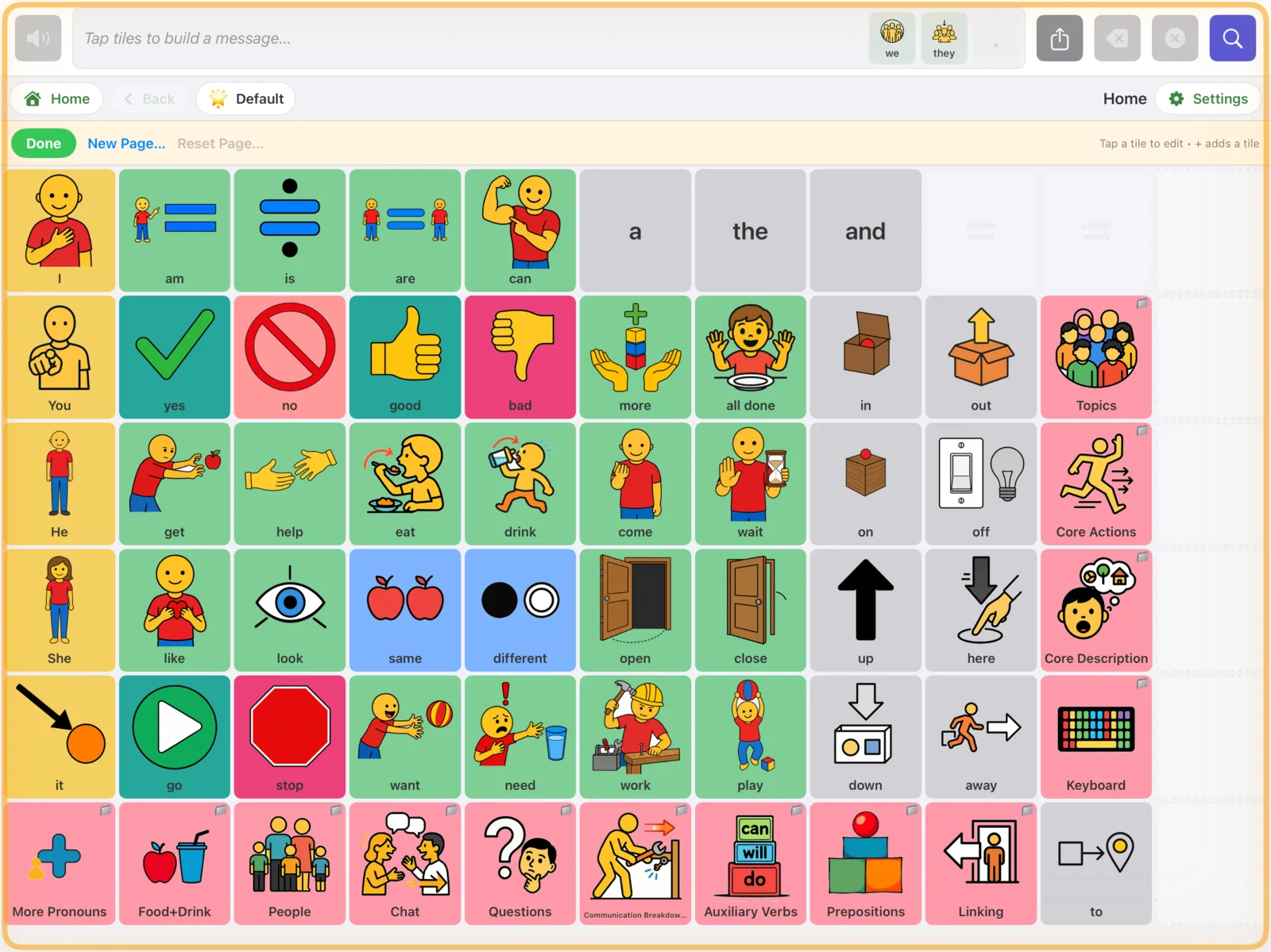
Good to know: Some tiles are part of how the app works, such as keyboard keys and the word-ending slots. These look faded in edit mode and cannot be changed.
Heads up: Edits apply to the whole iPad, for every profile. The one exception is hiding a tile for a single profile, described below.
Change a tile's word, picture or color
In edit mode, tap a tile to open Edit Tile (or New Tile for an empty space).
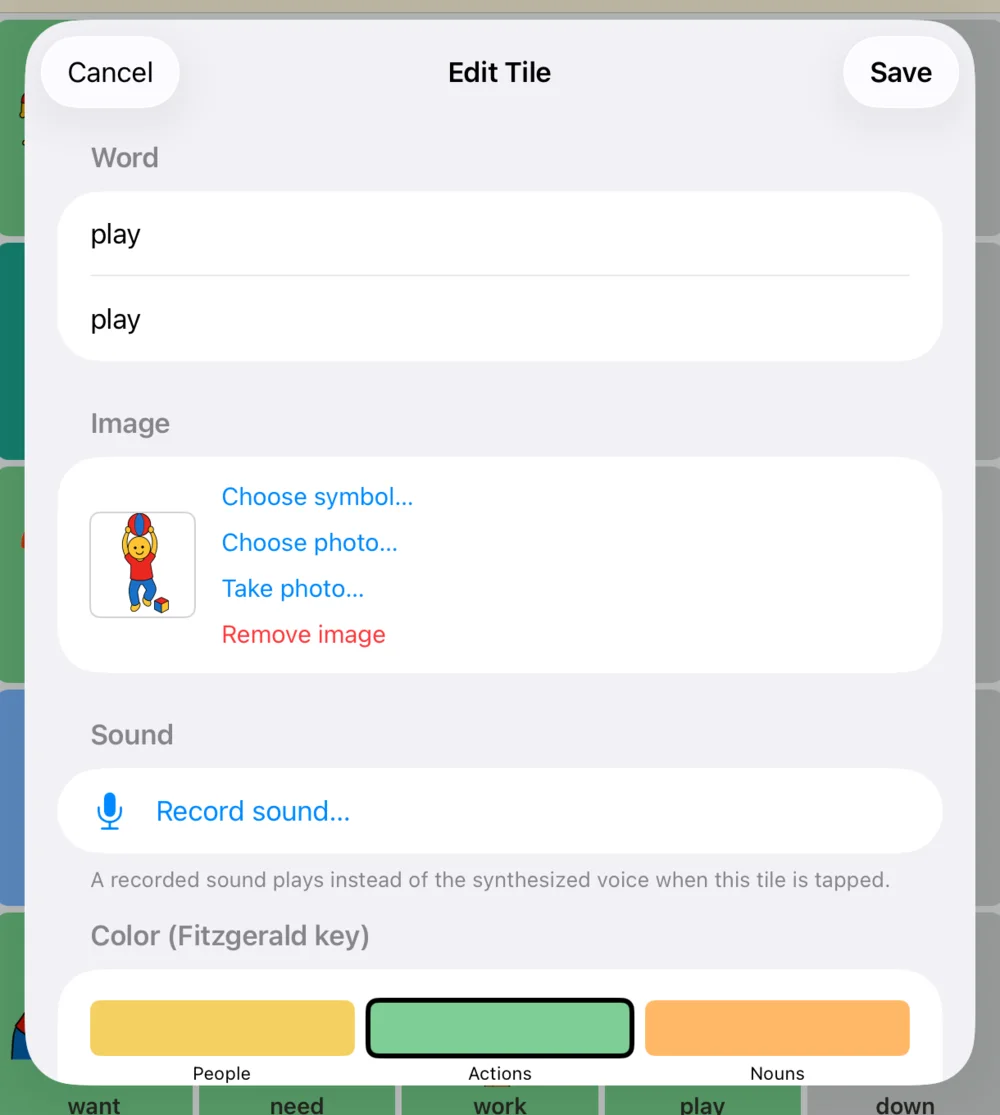
Word
- Label shown on the tile is the text under the picture.
- Speaks is what the voice says. Leave it blank to speak the label. Use it when the label is short but the message is longer, for example label bathroom, speaks I need to use the bathroom. It also fixes names the voice mispronounces: keep the correct spelling as the label and type a sound-alike spelling here.
Image
- Choose symbol… searches about 4,200 built-in symbols. Type in Search symbols… and tap one.
- Choose photo… picks a picture from the iPad's photo library.
- Take photo… uses the camera (shown on iPads that have one).
- Remove image leaves a large text-only tile.
Color
Pick the color that matches the kind of word: People, Actions, Nouns, Describing, Questions, Social, No / stop, Little words or Plain. Staying consistent with the color key helps the communicator find word types quickly.
Tap Save when you are done, or Cancel to leave the tile as it was.
Tip: Real photos work best for specific people, pets and places: Grandma, the family dog, the child's actual school. Keep symbols for general words such as go or more.
Record a sound for a tile
A tile can play a recording instead of the computer voice. This is useful for a sound effect, a line from a favorite song, or a name no voice pronounces correctly.
- In the tile editor, under Sound, tap Record sound…. Allow microphone access if asked.
- Make the sound, then tap Stop recording.
- Tap Play recording to check it. Use Re-record sound… or Remove sound if needed, then Save.
The recording plays when the tile is tapped. When the whole message is spoken with the Speak button, the regular voice is used for every word so the sentence sounds like one speaker.
Heads up: Use recordings sparingly. A communicator's words should sound like their voice, not a parent's or a therapist's. For everyday words, leave the sound empty and let the chosen voice speak.
Hide words (and bring them back)
A full 60-word board can be a lot for a beginner. Rather than starting on a smaller board, keep the full layout and hide the words you are not teaching yet. Hidden tiles vanish for the communicator, but every other word stays exactly where it will always be. As skills grow you unhide more, and nothing ever has to be relearned.
- Turn on edit mode and tap the tile.
- Turn on Hide from board to hide it for everyone, or Hide for (profile name) only to hide it just for the profile that is active now.
- Tap Save. Repeat for other tiles, then tap Done.
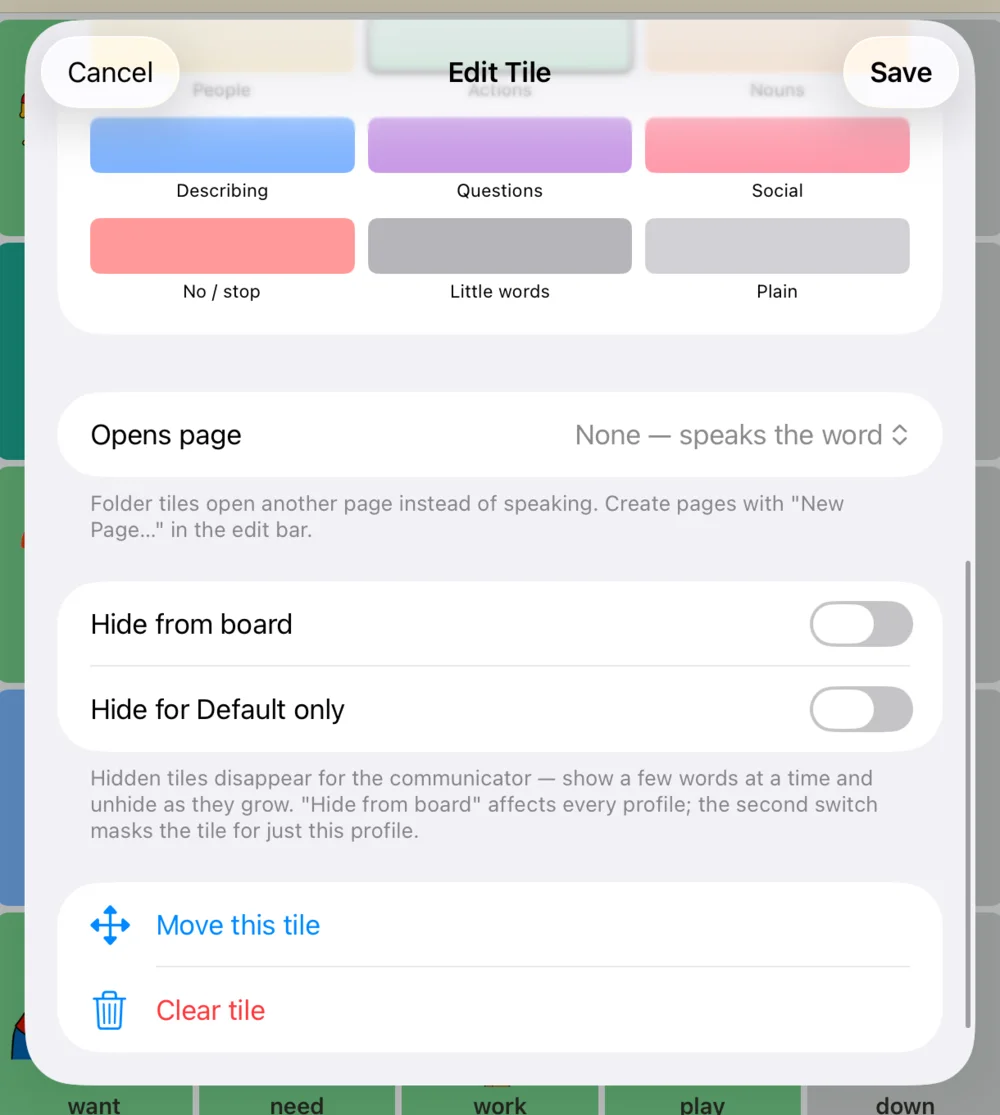
While you are editing, hidden tiles show faintly with a crossed-out eye: gray means hidden for everyone, blue means hidden for this profile only. To bring a word back, tap it in edit mode and switch the toggle off.
Hidden tiles are skipped by VoiceOver and Switch Control scanning, left out of Find Word, and print as blank squares.
For SLPs: Per-profile hiding lets one classroom iPad serve several students at different stages. Create a profile for each student, switch to it, then hide tiles with the this profile only toggle. Keep high-value core words such as more, stop, go, want, help, all done visible from day one and model well beyond the words the student is using.
Move or clear a tile
- In edit mode, tap the tile and choose Move this tile.
- The edit bar reads Moving — tap a destination. Tap the spot where it should go. If another tile is already there, the two swap places.
To remove a tile entirely, open it and tap Clear tile. It becomes an empty space.
Heads up: Think twice before moving core words on the Home board. Communicators find words by location. Once a location has been learned, moving the tile is like rearranging the letters on someone's keyboard.
Create a new page
Make a page for a special interest, a unit at school or a family activity.
- Go to the page that should link to the new page. Topics is a good home for most new pages.
- Turn on edit mode and tap New Page… in the edit bar.
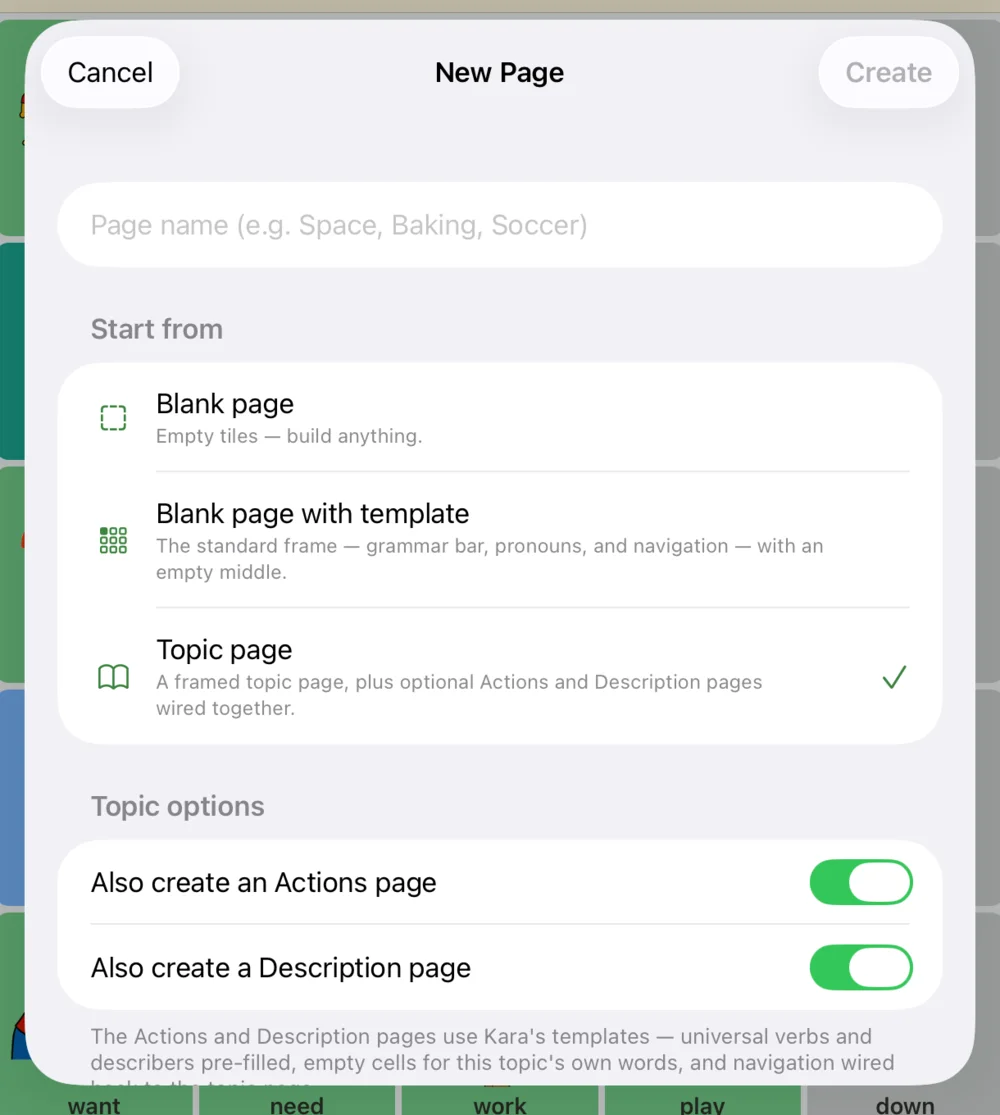
- Type a page name, such as Soccer, Baking or Space.
- Under Start from, choose a starting point (see the table below) and tap Create.
- If the current page has an empty space, a folder tile for the new page is added there. If the page is full, the edit bar asks you to tap a tile to place the new folder: tap the tile you are willing to replace.
- Open the new page and fill it in, one tile at a time.
| Start from | What you get |
|---|---|
| Blank page | Empty tiles. Build anything. |
| Blank page with template | The standard frame already in place: the top row of little words (I, am, is, are, can, a, the, and), the pronoun column, the navigation tiles on the right, and Home and Back along the bottom. The middle is empty for your words. |
| Topic page | A framed topic page, plus optional Actions and Description pages that are already linked together. These come pre-filled with useful verbs (put, take, get, make…) and describing words (fast, slow, big, small, hot, cold…) with room for the topic's own words. |
Tip: The template keeps core words in their usual places on every page, so the communicator can still say I want, it is or can you without going back to Home. That is why a templated page nearly always beats a blank one.
Turn a tile into a folder
Any tile can open a page instead of speaking. In the tile editor, tap Opens page and choose one of your custom pages. Choose None — speaks the word to turn it back into a regular word tile. Pages you import (see sharing boards) are linked the same way.
Undo your changes to a page
In edit mode, tap Reset Page… in the edit bar. On a built-in page this restores the original tiles. On a page you created, it deletes the page. You are asked to confirm first, and the button is only available when the page has been changed.
Heads up: Reset cannot be undone. Back up your boards first if you might want the edits again.