Web app settings
Choose a voice, adjust how tiles look and respond, and keep Settings away from curious fingers.

Open Settings (press and hold)
- Press and hold the gear at the top right of the app for two seconds. It fills with color while you hold. With a mouse, hold the button down; with a keyboard, hold Enter or Space.
- Settings opens with a list of categories on the left. Tap Done when you are finished.
A quick tap only shows a reminder to press and hold. The hold is there so that a curious communicator does not change the voice or board by accident. For a real lock, add a code: see Set a settings passcode.
Good to know: Settings are saved in the browser you are using. A different browser or a different computer starts with the defaults.
Choose a voice
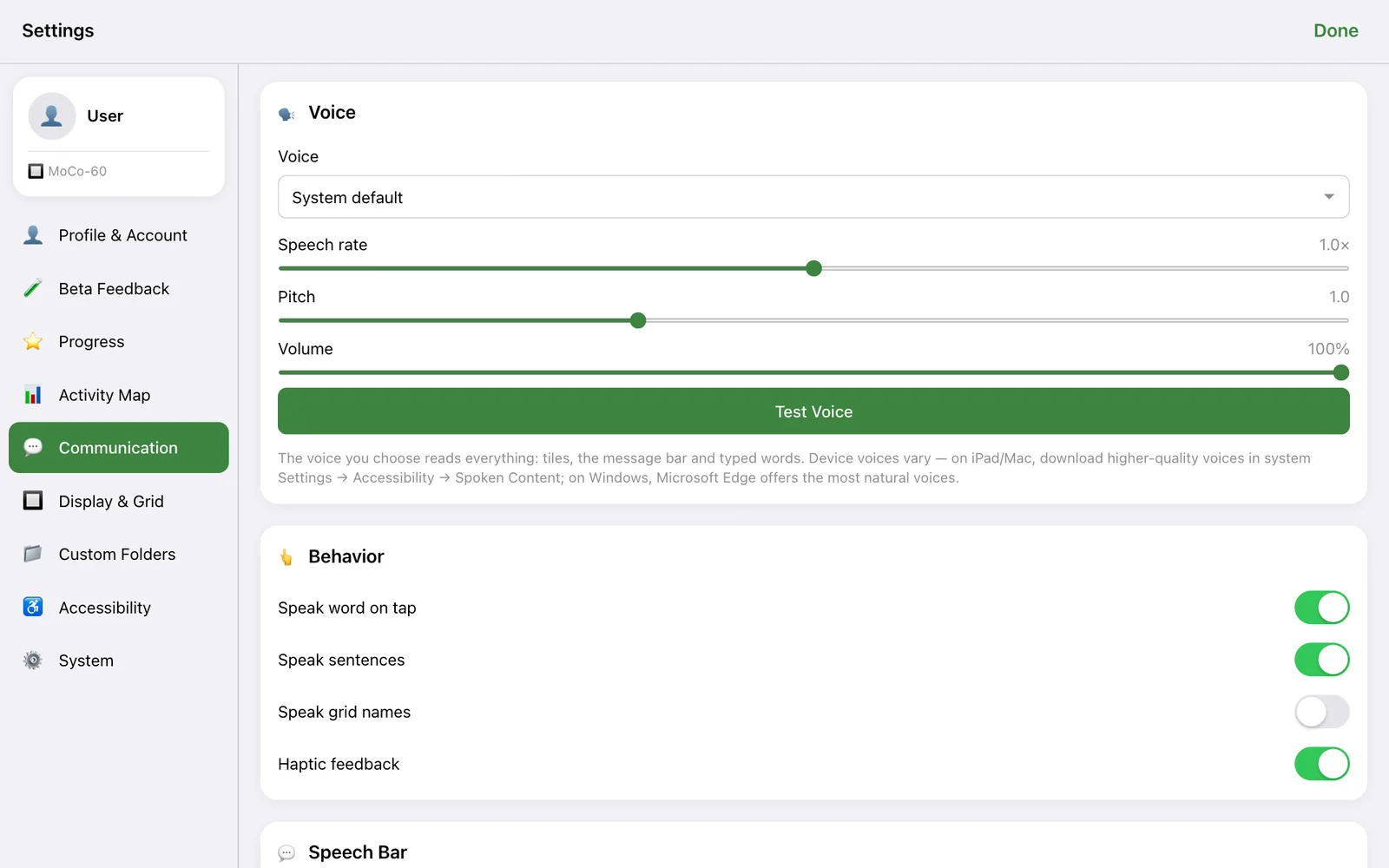
Open Communication and find the Voice card.
- System default uses the voice built into your device and browser.
- MoCo Child · works offline is a natural child voice made for Model Communicator. It is listed under On-device voices.
- Every other voice your browser offers is listed by name.
Use the MoCo Child voice
- In the Voice list choose MoCo Child · works offline.
- A note explains that the voice is a one-time download of about 29 MB. Tap Download and use. (Use Wi-Fi if you can.)
- While it downloads, the system voice keeps speaking so nobody is left without a voice. When you see MoCo Child is ready and works offline, you are set.
After that the voice runs entirely on your device, with no internet needed. To free up the space later, tap Remove download (29 MB).
Rate, pitch and volume
Use the Speech rate, Pitch and Volume sliders, then tap Test Voice to hear "Hi! This is how I sound."
Getting better system voices
- iPad and Mac: download higher quality voices in the device's Settings under Accessibility → Spoken Content.
- Windows: Microsoft Edge offers the most natural sounding voices.
- Chromebook: the MoCo Child voice is usually the best sounding choice.
Tip: Whichever voice you pick reads everything: tiles, the message bar and typed words. Choose one voice and stay with it. A consistent voice becomes the communicator's own.
Speech and message bar options
Still under Communication:
| Setting | Default | What it does |
|---|---|---|
| Speak word on tap | On | Says each word as its tile is tapped. |
| Speak grid names | Off | Says the name of a page when it opens. |
| Haptic feedback | On | A small vibration on each tap, on devices that support it. |
| Font and Font Size | System, 24 px | How the message bar text looks. Font choices include OpenDyslexic. |
| Highlight spoken word | On | Highlights each word as it is spoken, which supports reading. |
| Auto capitalization | On | Capitalizes the first word of a sentence. |
| Show Share button | On | Shows or hides Share in the message bar. |
| Hide speech display | Off | Hides the message bar completely. Rarely needed. |
Word prediction
Allow adult language in predictions is off by default, so sexual and profane words are never suggested. Turn it on only for adult users who want it. Slurs are never suggested either way. This setting only affects suggestions: typing and tiles are never restricted.
Display and tile appearance
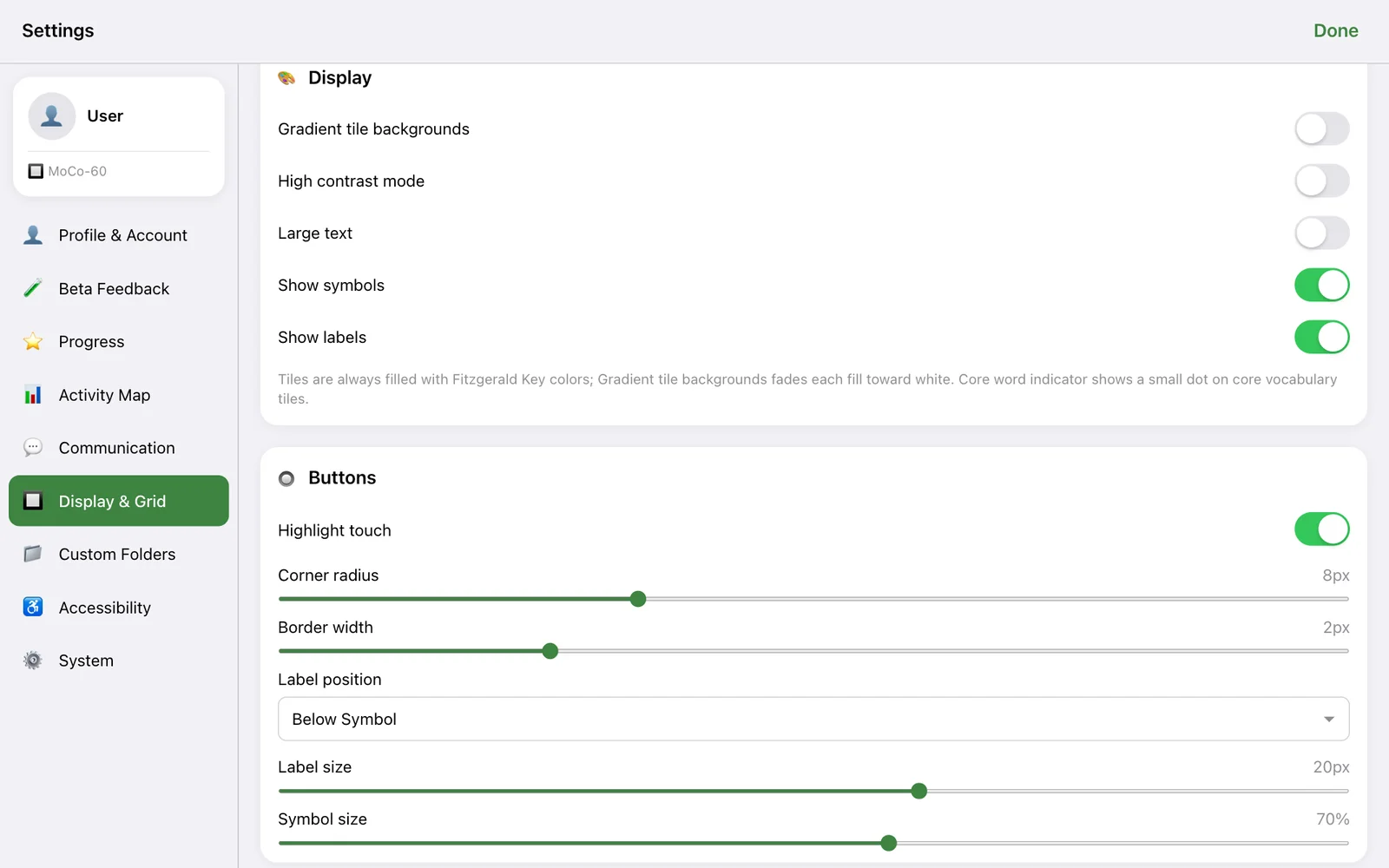
Open Display & Grid.
| Setting | Default | What it does |
|---|---|---|
| High contrast mode | Off | Stronger borders and text. |
| Large text | Off | Bigger tile labels. |
| Show symbols / Show labels | On / On | Turn off symbols for a text-only board, or labels for a symbol-only board. Most people should keep both. |
| Word endings and similar words column | On | The narrow extra column at the right of the board. Turn it off for a simpler screen with slightly larger tiles. The two similar words spaces in the top row keep working. |
| Gradient tile backgrounds | Off | Fades each tile's color toward white. |
| Highlight touch | On | Flashes a tile when it is touched. |
| Label position | Below Symbol | Above Symbol, Below Symbol or Overlay. |
| Label size / Symbol size | 20 px / 70% | Balance between the word and the picture. |
| Corner radius / Border width | 8 px / 2 px | The shape and outline of tiles. |
Good to know: The board shown under Communication Board is MoCo-60, six rows of ten. Smaller board sizes are in development and will appear here when they are released.
Accessibility options
Open Accessibility.
- Visual: High contrast, Large text, Bold text and a Color blind mode with settings for protanopia, deuteranopia and tritanopia.
- Motor: Large touch targets, and Minimum touch duration, which makes a tile respond only after it has been held for the time you choose (up to one second). Start low, around 150 to 300 ms, and raise it only as far as needed to filter out brushes and accidental touches.
The marketing pages of this website have their own accessibility menu (the round button at the bottom right) for text size, spacing, contrast and motion. See our accessibility statement for details.
Signing in (optional)
You never have to sign in to communicate. Under Profile & Account, Sign in with Google adds a few extras:
- Profiles for more than one communicator.
- Custom Folders: copy one of the built-in folders or start a blank one, change its words, symbols and colors, and optionally make it your home screen.
- Cloud Sync (under System) to carry custom folders and progress between your devices.
- Activity Map and Progress (next section).
Signing in is also what unlocks Studio, where you make printable materials and full custom boards.
Good to know: We never record the messages anyone speaks. See the Privacy Policy for exactly what is and is not stored.
Activity Map, achievements and goals
For signed-in users the app can keep simple counts of which tiles get tapped.
- Activity Map shows a heatmap laid over the real board: the more a tile is used, the warmer its color. Filter by All Time, Today, This Week, Last 30 Days or a custom range, and pick which page to look at. Tap a square to see its exact count.
- Progress holds Achievements (friendly milestones such as speaking 25 sentences or using 100 different words) and Therapy Goals, where you can list target words, for example I, want, go, more, help, and watch progress toward them.
For SLPs: The heatmap answers practical questions quickly. Is the student reaching the whole screen, or only one side? Which core words are never touched? Is anything being used outside of the food folder? More on the heatmaps page.
Set a settings passcode
- In Settings open System and find the Access card.
- Turn on Use settings passcode.
- Type a 6-digit passcode and tap Done.
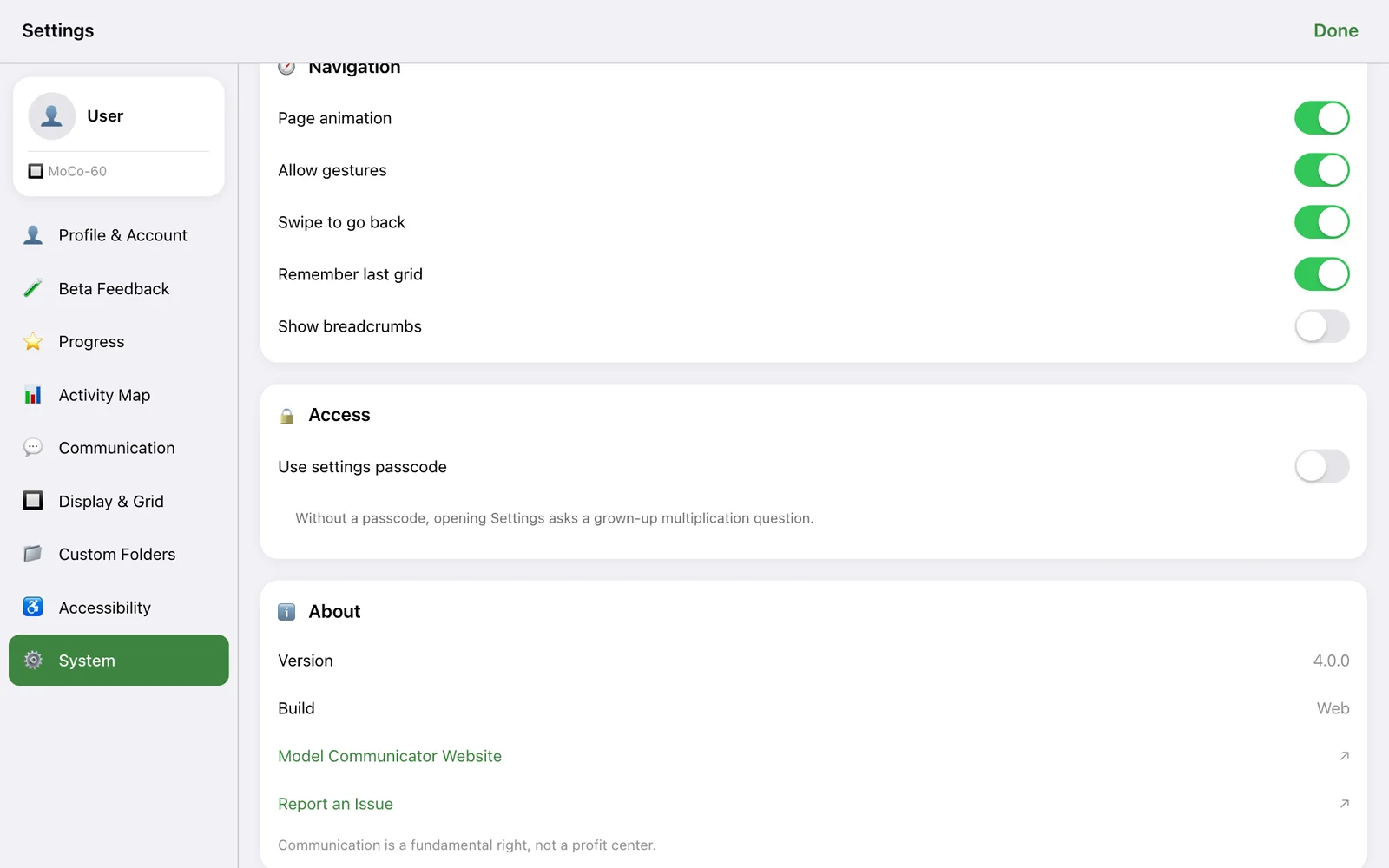
From then on, holding the gear asks for the passcode before Settings opens.
Heads up: Write the passcode down and share it with the team. It is saved in this browser only.
Reset and clean up
- Profile & Account → Reset All Settings puts every setting back to its default.
- System → Reload Folders fetches the newest version of the board.
- System → Clear Download Cache removes everything the browser saved for offline use, including a downloaded MoCo Child voice. Only use it if something looks broken, and be online when you do so the app can download everything again.
Beta Feedback has two short forms: Share your feedback and Report a bug. We read every one.